Showing posts with label Google Tricks. Show all posts

March 17, 2012

Google Play Store Updated to v3.5.15 : Download It Now

gplay_logo_web_white


If you were engrossed by last week’s Apple announcements, you may have missed the fact that the Android Market was renamed to the Google Play Store. The Big G felt the move would better reflect the content available, which now includes books, movies, music and apps.

With 850,000 daily activations (as per the ever-boastful Android chief Andy Rubin), Google needs to make sure its retention rates are equally as impressive. Despite enjoying a greater reach with its Android OS compared with rival Apple’s iOS, it’s generally accepted that content is easier to obtain from the vaster App Store, prompting developers to favor the Cupertino company’s online portal.
Indeed, developers are hardly going to leap onto the Android platform considering the current situation, which has seen devs complaining about delayed revenue payments from Google. Europe-based software coders have besieged forums in recent weeks, arguing that their February fees had not been received on 7 March as scheduled.

Still, even with the developers up in arms, Google has released a new build of the Google Play Store app (build 3.5.15), which is now available for download. Features include a new tabbed interface in the “My Apps” section, as well as more concise, informative app reviews, which allow you to see the specific device of the person leaving the review, as well as filter your search results by device.

Seeing as the Google Play Store is still in relative infancy, the likelihood of regular updates such as this are high, and if each revision turns up a couple of useful new features like this one has, Google’s vision of a well-functioning, streamlined content center could certainly bear fruit.

Google Play New Update

Will it be comparable to the App Store in terms of content and usability? Only time will tell; but removing the Android branding in favor of Google is certainly a step in the right (PR) direction.

Download Google Play Store App version 3.5.15 [Mediafire Link]

To install, simply overwrite your current Google Play Store. Once installed, be sure to let us know if you uncover any hidden features or bugs by dropping a comment on our Facebook or Google+ pages.


February 28, 2012

How to Install Android 3.2 on a Computer

Android 3.2 (Snapshot 1) [Running] - Oracle VM VirtualBox_001
Yes, you read correctly. With a software called VirtualBox, you can actually install Android 3.2 on your machine. But wait, I'm running OSX, can I? Yes. Both Linux, Windows, OSX and Solaris can run VirtualBox and thus Android. It is through a project called Android x86 makes this possible. It is a work to make it possible to install Android on standard PCs.

How does it work?

x86 virtualization allows multiple operating systems simultaneously can share the x86 processor resources in a safe and efficient manner, generally known as hardware virtualization. A virtual machine (VM) is a fully insulated installation within your normal operating system. Modern virtual machines are implemented with either software or hardware emulation virtualization. (Wikipedia)
 

In practice, you can install another operating system like Windows or Linux inside another. Try all Android versions you want. Here you can download Android for x86 in 1.6, 2.2, 2.3 and 3.2 versions. The people behind this project has adapted to a number of Android tablets and netbooks, such as ViewSonic Viewpad 10, Inspiron Mini Duo, ASUS Eee PC, ASUS laptops / tablets, Motion M1400 Tablet PC, Lenovo Ideapad S10-3T, and HP Pavilion tx2500.

Getting Started

  • Start to download VirtualBox for your operating system from this page .
  • Download the ISO file for Android 3.2 x86 from this page .
The installation of Virtualbox I guess is fine and when you get up applies it to set up a virtual machine and point the virtual CD-ROM to ISO file you downloaded. From there, start up the CD and install Android in the virtual machine. Burn the ISO file on a CD, you installs this on a real PC, not just virtually. But here I have made it virtually to showcase how it will look like. See how I installed Android 3.2 in Virtualbox in just 3-4 minutes.

What works

The response is good enough and I can use Android like I was sitting on a tablet. I do not have touch screen on my laptop, but I can use the mouse as a replacement. I can navigate normally, open and use programs, såfremst they do not have internet. See what does not work for more on that question. I can change and manipulate the home screen.

What does not work

Touch does not work. I did not get Wifi to work, although I read in other forums, anything to work even if you get error in the WiFi setup. As long as you have turned on the bridge in the network setup in Virtualbox. It may be that's because Android 3.2 x86 is so new, for it seems to work in 1.6 and possibly 2.2. I obviously can not use it to call with, my PC does not have the opportunities once and I do not think it would have gone in Virtualbox.

Conclusion

An incredibly quick and easy way to try out Android tablets on which so any PC, whether it's running Mac, Windows or Linux. You can also install Windows versions and Linux versions, in fact if you OSX hacking bit. The response is probably a bit slower, but will probably not use this as a regular operating system, either for testing and experimentation. If you have an application that only runs on Android or Windows / Linux, this is a smart solution to get to run it.


February 14, 2012

hfeed hentry Warning: Missing required field "updated". Warning: Missing required hCard "author".


in your  Rich Snippets Testing Tool data. You must solve these warnings. So here I'm gonna tell you how to do it.

I removed hfeed and hentry from my temple. To do this go to design section of blogger.com of your blog. Click on edit HTML.

DOWNLOAD AND SAVE A COPY OF YOUR TEMPLETE.
If any thing goes wrong we will need this to fix things up.

Now search for hfeed in the template. You will get it two times. It will be something like this <div class='blog-posts hfeed'> just remove hfeed. You will now have something like <div class='blog-posts'>.
Next search for hentry. You will get <div class='post hentry'> and <div class='post hentry uncustomized-post-template'>. Remove hentry from both so that you get <div class='post'> and <div class='post uncustomized-post-template'>.
Now save the template.


Now check in the Rich Snippets Testing Tool. The error will be gone and so will be the hfeed hentry data. I have done so with my blog and now my articles featuring in Google Search results shows up my thumbnail and link to my profile.
If you still find the problem persisting try searching for hfeed & hentry in the temple again after you have checked the Expand Widget Templates box. Hope that works.


February 13, 2012

Show Author's Photo in Google Search Results for Blogger Blogs or any Website

Well, you can find picture and name of author in some Google search result. As Google can now display your name as well as your profile picture in search results next to stories that you may have written. The picture will in turn link to your Google Profile page. You may want to see this page on Google for a live example.


What’s the advantage?

As a content creator, this is an important feature for you because you can now indirectly claim authorship of your content on Google search pages.

There’s another advantage as well – your Google CTRs may improve. That’s because a Google page is often chock-full of text and thus people might be attracted more towards a result that has some visual element (the author’s photograph) attached to it.

Now you must wondering how to do it for your site or blog? So your image is appear in search result related to your site in Google. This is very simple. If you write a blog or have a website where authors can contribute stories, here’s a new feature in Google – Authorship – that you’ll find very hard to ignore (and you should not)

How to do it?

I search in google.com about "How to add authors picture in Google search result"
It gave me many results, I try labnol.com and few more sites. What they say, can not help you in case of blogger blog. So I do some research & do it in my way.

1. Open a Google+ profile : click here (not fan page, just profile. If you are already on Google +, skip this step)
2. Click on Edit profile
3. Add your site's ULR in the Contributor to section with www (i.e. www.learntricks.in)


4. Open your site/blog, create a about me page (i.e. http://www.learntricks.in/p/about.html)

5. So if you are using blogger and wonder how to put something only on home page then click edit HTML >> Proceed and paste  
<link rel="me" href="https://plus.google.com/YOUR-ID/about" /> just after
<title><data:blog.pageTitle/></title> (find this by clicking Ctrl+F)
but before
<b:else/>
<title><data:blog.pageName/></title>
</b:if>


6.Edit your About me page and put <a href="https://plus.google.com/YOUR-ID" rel="me">YOUR NAME+</a> anywhere, better if you give it twice in your site's about me page


7. Add an HTML gadget and add this <a href="https://plus.google.com/YOUR-ID?[give a space]rel=author">YOUR NAME+</a> and do not forget to give space
(i.e. <a href="https://plus.google.com/YOUR-ID?       rel=author">YOUR NAME+</a>)


8. That’s it. Wait for Google to re-crawl your new content and then test your links. Open the rich snippets tool and copy-paste the URL of one of your recent stories in the preview box. If the results say verified author (see the screenshot below)


9. Click here fill this form and let Google know about your changes! (although, it's not so necessary)

If your site is Blogger Blog you must see this error :

hfeed
   hentry
        Warning: Missing required field "updated".
        Warning: Missing required hCard "author".

You must solve this error, or Google may not able to show your photo in Google search result. So to know how  click here.


Other Troubleshooting tips:

If Google is still not willing to display your profile picture in search pages, here are some things you can try :

1. Make sure your author page is complete with some pictures, you have written a bio and that you have linked to your other social profiles. Also, the author page should be on the same domain as your articles /stories.

2. Your Google Profile should also be complete with your bio and include links to your own site as well as your other online profiles.

3. Google will pick the picture thumbnail from your Google Profile page and thus use an actual picture of yourself (not an icon). The picture should look good even when compressed into a 50×50 thumbnail image.

February 6, 2012

How To Create a Time-Lapse Movie with Google Street View

Amit Agarwal made a short time-lapse movie today using Street View images from Google Maps and playing them all in a quick sequence with some background music. The end result, as you may have noticed in the video, is quite similar to the view that you would get if you were actually driving on that road while sitting inside the Street View car.
This may have some practical uses. For instance, you can create a time-lapse of the route between the airport and your business, add voice narration to mention the important landmarks on that route, and people are then less likely to call you for directions.
To get started, you would obviously need hundreds of Street View images. It is not practical to capture these many screenshots manually so what I have done is written a small script that does two things – it capture the screen and then advances the Street View in the browser by one step. And this runs in a loop.

Step 1. Create a new profile (or use this profile) in SnagIt that captures the screen and auto-saves the screenshot to a file in the background. Make sure that you capture screenshot images at 1280×720 for publishing a 720p video.

Step 2. Assuming that you have AutoHotkey on your computer, create a new text file and copy-paste the following lines into that file. Save the file with .ahk extension.

Loop {
  Send {Up down} ; Press the UP arrow key to advance
  Sleep 1
  Send {Up up}
  Sleep, 1000 ; Wait for the Street View images to load in the browser
  Send, {PRINTSCREEN} ; Capture the screen and save the image to a file
}
 
Step 3. Open Google Maps Street View in the browser and run the .ahk file that you created in the previous step. Once you have captured enough images, end the script by right-clicking the Autohotkey icon in the taskbar.

Step 4. Open Windows Live Movie Maker (or iMovie if you are on a Mac) and import all these images into a new project. After the import is complete, select all the images and under the Video Tools –> Edit, set the image duration to 0.2 seconds.
That’s it. Go to File –> Save Movie to create your first time-lapse video of Street View and upload it to YouTube in HD (720p).

time lapse video settings 

February 3, 2012

Facebook Tests Photo Viewer That Encourages Comments, Google+ Comparisons

Facebook Photo Viewer Edited done


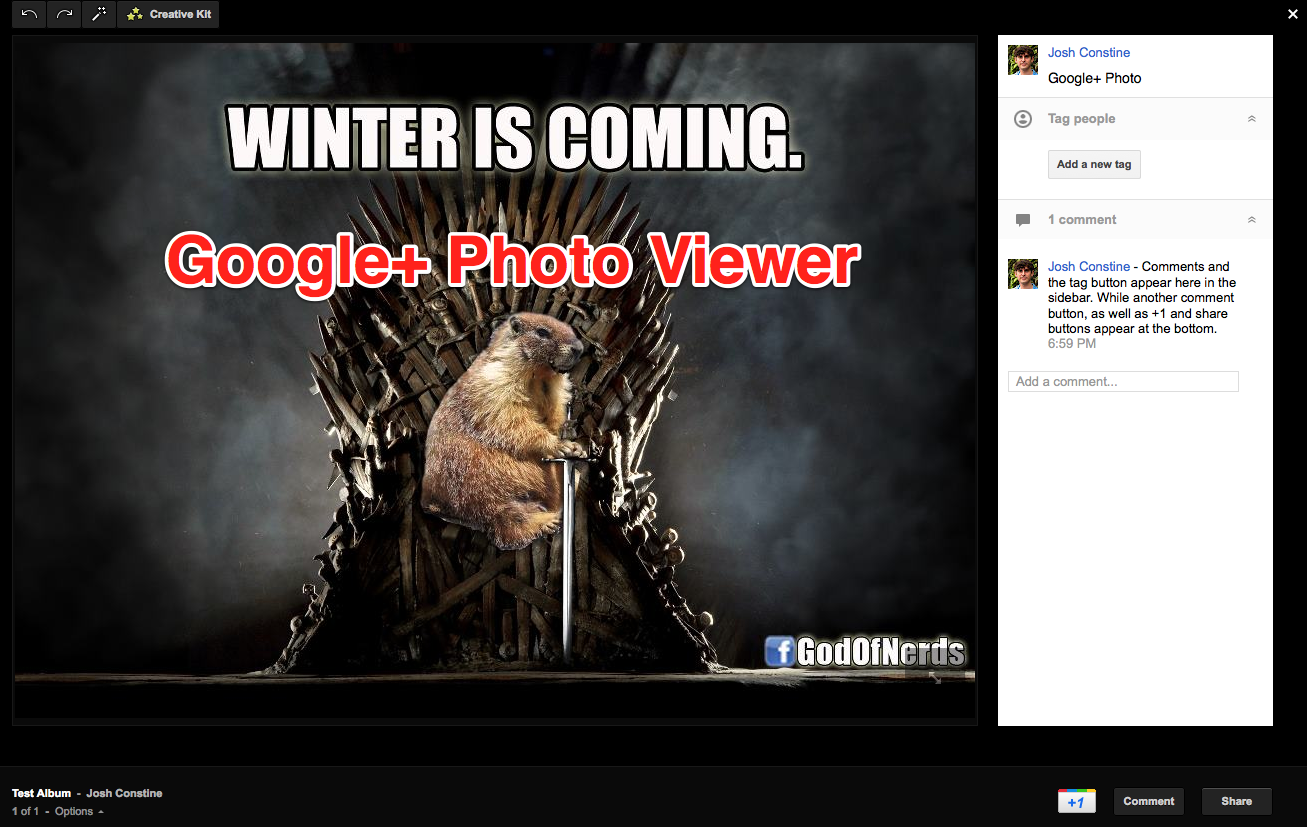
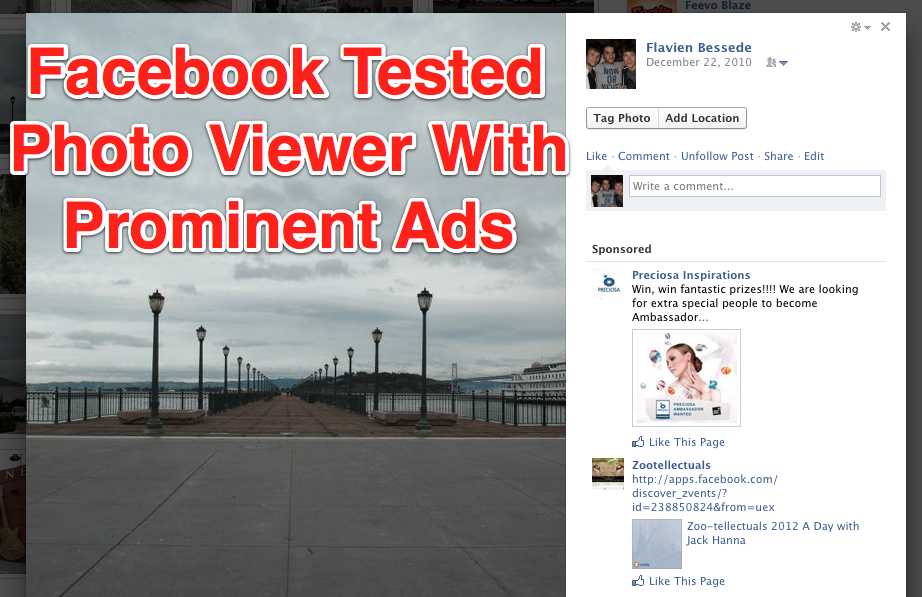
Facebook is testing a new photo viewer layout that mounts engagement buttons and comments to the right rather than beneath images. See, Facebook doesn’t want you to just view comments, it wants you to start a conversation. Apparently the company doesn’t care about being accused of copying Google+, since the viewer’s layout is very similar to that of its competitor.

The fact is that this is good design, though, so it makes sense for Facebook to integrate whether or not it has appeared elsewhere. Currently when Facebook users view photos, they see a big blank space on the right but can’t see the comments below with scrolling past the fold and away from the image. That makes users more likely to leave the photo viewer before engaging. The blank space is better filled with comments that lend context to a photo, as a small percentage of Facebook users are now seeing.


Facebook hasn’t been shy about taking inspiration from other products. In the months since Google+ launched, Facebook has added features found in Google+, including an asymmetrical Subscribe option, video chat, enhanced friend lists, and near-infinite post length. Facebook’s goal is the best user experience, and Google got a lot of that right. Google+ certainly wasn’t shy about using Facebook’s design as a starting point.

Facebook employees have repeatedly assured me that product teams aren’t thinking about ad revenue when they design products. Still, convenient repercussion of the tested photo viewer design may be an increase in ad clicks. Rather than displaying ads beneath photos, the tested design shows them more prominently in the comments sidebar. Finding these types of synergies between business and user experience will be key to Facebook honoring the interests of its future investors.

So why does this small change matter? First, encouraging conversation aligns with Facebook’s goal of driving connections between people, such as friends of a photo’s owner who might interact in its comment reel for the first time. Second, these comments drive notifications for all other commenters, which inspire more return visits and time on site. I bet the test will show increased engagement, and Facebook will implement some version of side-mounted comments.


[Thanks to Josh Constine for the screenshots]

February 2, 2012

Google Music App 4.0.1 For Android - Free Download


I have already grabbed the app & decided to reward it to my readers as a gift .

Although , the app is especially build for Ice Cream Sandwich but I am pretty sure that it will also run on Froyo & Gingerbread . Google Music App 4.0.1 will offer you a brand new interference along with a cleaner look . It will also deliver you better controls & options for running the app . All the tabs of the players has become much cleaner & the player are at the bottom of the app become smaller as compared its previous version .

The selection menu has now become a dialogue-box instead of pop up , and the dialogue-box now appears below the Artist . And the ' Available Offline ' option is not available in Music 4.0.1 , that means , steaming has now improved a lot. Apart from that , the design & interference of the app has now become more stylish as compared to Music 4 .

That's all , all these are new features in Music 4.0.1 , and the other features are quite same as the previous version .

Although , this app has not been officially announced , and that's why , it is not available in the Android Market .

We are hoping for its release on the same day of the announcement of Ice Cream Sandwich . But , I have got hands on it , and uploaded it to a free file sharing network so that you can also enjoy this newest version of Google Music . Just follow the link below to download it :


January 19, 2012

How to add Stock Photos to your Google Documents

Stock photos in Google Docs 


Google Docs is integrated with Google Image Search to help you quickly find and insert web photographs in your documents. The results are filtered to only show images that have been licensed under Creative Commons and labeled for commercial reuse so  you are legally allowed to insert these images in your documents.

Other than Creative Commons, there’s a new image search option available in Google Docs that will help you find professionally shot photographs for your documents. Google has partnered with stock photography services like Photos.com to offer royalty-free stock images inside Google Docs, just like Microsoft PowerPoint.

How to Insert Stock Images in Google Docs


While you are inside the edit view of a document, go to Insert –> Images –> Stock Photos and use the search function. The collection of stock photographs available inside Google Docs isn’t as big as what is offered by Microsoft Office but that should possibly change once Google signs up with more partners.

Other than Google Documents, the option to insert stock photographs is available in Presentations and Google Spreadsheets as wel.

January 3, 2012

Awesome Snowfall on Google Results


As we know Christmas is one of the best Festival in this world. Where people celebrate this festival too much. So I have finding an great trick that you love it very much, So lets Googling this trick.
  1. Simply Open Google.com
  2. Type Let It Snow and hit Enter.

After Searching This Trick you will get beautiful Fallen Snow in Google Search Term


Google Heart Search

  1. Simply Open Google.com
  2. Copy Below Code and search it on Google

(sqrt(cos(x))*cos(200*x)+sqrt(abs(x))-0.7)*(4-x*x)^0.1, sqrt(9-x^2),-sqrt(9-x^2) from -4.5 to 4.5


After Searching This Trick you will get this beautiful Heart Image


So now pass this trick to your girlfriend and let her make search on Google and when she get this heart in front of her she will be impressed and you will dedicate your love to her, enjoy and have fun Geeks.

Click to Download our Android App