Showing posts with label Browser Tricks. Show all posts

July 26, 2012

Change Facebook Login Page

Hey pals, after a long time I am back in LearnTricks. As I am so busy with my study it's hard to search new tricks everyday. 2day I'm posting an old - known to all - type thing. Well if you are unknown from it then Hurray...
it's good luck for me.


Here I am providing you a quick trick to get  customizable Facebook log-in screen. It's cool, interesting & different.


CAUTION : THIS ONLY WORKS WITH GOOGLE CHROME BROWSER


    in Google Chrome
2. Install this Extension
3. Log-out from Facebook if you already logged in
5. You can see a new type log-in page. You can change the background photo with any photo you want by clicking the Setting icon above the blue Log In button.

Changed Facebook log-in screen.

 To get this photo click here


Check-out more services from us - For Hacking tricks : Click here | For Android Tricks : Click here | For How To Do Tutorials : Click here | For Gadget reviews : Click here | For Internet Tricks : Click here | For Windows tricks : Click here

March 27, 2012

Speed up Google Chrome Browser

Google Chrome is one of the fastest web browsers at present. It serves web pages at a very fast speed then any other browser present in the market currently. Google Chrome saves time and enhance your productivity. However being an application, it also gets effected day by day in terms of both speed and performance accompanied with some weird error messages. However there could be lot of reasons behind it, but most probably it happens because,

  • we keep on installing several add-ons to increase its functionality but don’t uninstall them after usage, it lays much emphasis on its performance.
  •   
  • We are not used to change the default options due to which browser gets loaded with lots of browsing history and other information like forms login, cookies, session history etc. and this all slows down the working speed of browser.
There are some process to speed up your Google Chrome Browser.
Make your Chrome more faster with FastestChrome Extension
8 Ways to Make your Google Chrome Browser more Faster
FastestChrome is a chrome friendly extension from the makers of the popular Firefox extension, FastestFox which allows users to save time while browsing and searching information on the web. FastestChrome extension works by adding a range of extra search functions to your browser i.e. when you highlight a word or phrase, a pop-up bubble appears with extra search options.
2. Delete History and Unused Data
This is really influential procedure to make your browser fast by removing all the old history and data which is of no use to many of us. Let see how to do this.
Open Google chrome and press Ctrl + Shift + Delete together, a pop up as shown here will appear, here you are available with many options to delete your browsing data and history up to a particular time period. Make a selection and go for it!
8 Ways to Make your Google Chrome Browser more Faster
3. Uncheck DNS Pre-fetching technology
The DNS pre-fetching technology is centered around improving the way web pages are loaded. Sometimes this feature doesn’t work properly which may give rise to several problems like your browser could hang while loading a website or shows different error messages like “The webpage at http://www.xyz.com  might be temporarily down or it may have moved permanently to a new web address".  Here are some suggestions:  Reload this web page later.” or "Resolving Host". Here is a Google Chrome trick which is simple enough to solve this issue and give faster surfing experience:
Firstly, Open Google Chrome.
  • Click the Spanner icon located on the right side of the browser.
  • Click Options and choose Under the Hood tab by clicking on it.
  • In the Privacy section, untick Use DNS pre-fetching to improve page load performance.
  • Click the Close Button.
  • Restart Google Chrome. 4. Use Speed Dial Feature in Google Chrome
    8 Ways to Make your Google Chrome Browser more Faster
    Speed Dial  saves lot of your time while using Chrome. It can be used by replacing the default “new page” tab in Chrome with the logos from your most frequently visited and favorite Web sites. It also gives a new and better look to your Tabs, with this you can enjoy a fast and intuitive design. By using speed dial you need not to write complete address of website and by visually entering your Web addresses,  your browsing experience will become much faster in Chrome.
    5. Do use Smooth Gestures extension to speed up your navigation on Chrome
    8 Ways to Make your Google Chrome Browser more Faster
    Smooth Gestures is a  perfect Mouse gesture extension for Chrome,  which lets you to use mouse gestures and keyboard shortcuts for much faster navigation while surfing the internet. Getting any information online by using mouse and keyboard  has never been so faster.  Install Smooth Gestures  that allows you to move the mouse while holding the right mouse button to trigger actions, such as page navigation or tab management. It supports diagonal gestures, syncing/import/export of settings, click-and-drag (mouse gesture), click-and-scroll (scroll gesture), click-and-click (rocker gesture), and keyboard shortcuts.
    6.  Use Quick Tab to organize your multiple opened tabs
    Quick tab is another speed enhancing extension for Google Chrome. It is a tab management browser based on the "Recent Files" quick selector. It provides a miniature visual view (called a thumbnail) of all your open tabs. This makes it easier to find the webpage that you want to view. Quick Tab allows you to move quickly between recently used tabs without requiring the use of your mouse.
    7. Use Adblock Extension to speed up page loading time
    This is a popular Google Chrome extension that will clean all the pesky ads present in web page such that you can view web page completely ads free. With this extension ,  page will load faster because it doesn’t have to load those advertising graphics that often come from third party servers.
    8. Use  Cleeki to manage your search tasks
    8 Ways to Make your Google Chrome Browser more Faster
    Cleeki is another extension to speed up chrome. If you need to launch search/share/publish tasks based on any content in your browser. Just select some text, and Cleeki can search/share/publish the content and preview the results immediately. Cleeki can also preview a hyperlink without opening a new window/tab.
  • March 17, 2012

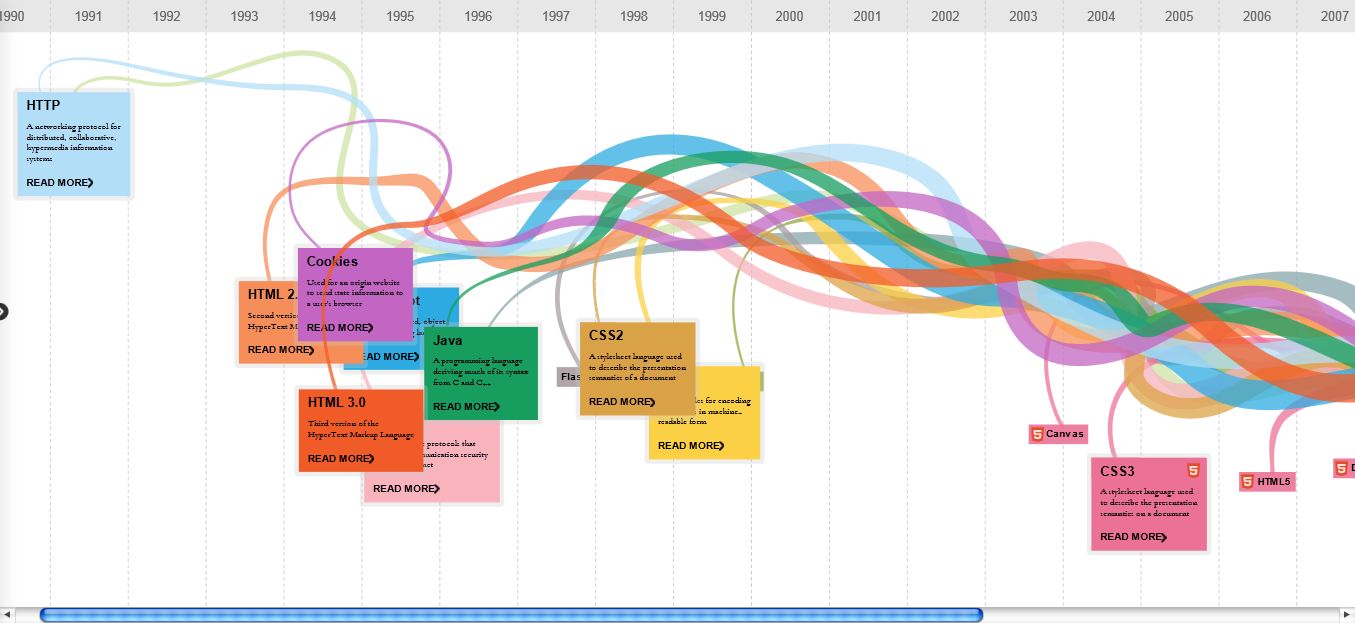
    Evolution Of The Web : Chrome Experiments

    Evolution Of the Web presented in a very beautiful way. Browsers and Techniques are shown very nicely. Must See.

    Plasma Tree : A Nice Chrome Experiment


    A very nice and sweet Chrome Experimen, that produces a tree wherever you click on the screen. Earlier we also covered Chrome Experiments like Evolution Of The Web and Flower Power.
    Go to this link to see this experiment – Plasma Tree

    March 3, 2012

    How to view page source in google chrome

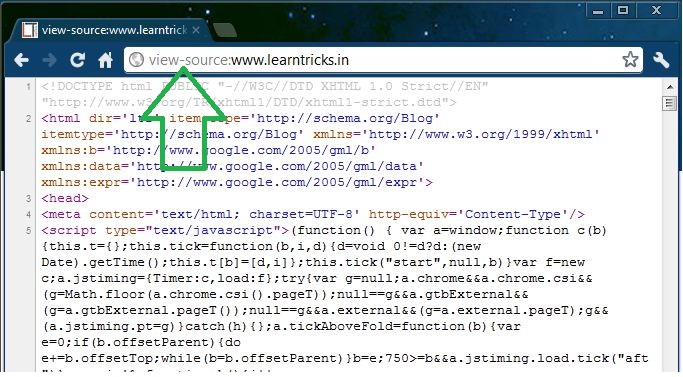
    Google Chrome normally opens the source view of the web page in its own new tab. To see a web page’s souce code you have to normally right-click on the page and choose “View Page Source”. If you prefer to spend most of your time on the keyboard and wanted to avoid extra mouse clicks then Google Chrome has a nice lilttle shortcut to get to the web page source code quickly.
    Open a new tab in Google Chrome and type-in :

    “view-source:the-web-address”

    like for example : “view-source:www.learntricks.in”

    February 6, 2012

    Share Text Information inside QR Codes

    iphone-qr-code

    QR Codes is an interesting way of storing & exchanging text information inside images.
    These black & white images may make no sense to the human eye but the information contained inside the image can be extracted instantly on the desktop or a mobile phone using free decoders.
    For instance, the QR coded image above stores the login details of a fictional bank account.  That information can be easily extracted by passing this image through a QR code decoder application as shown here.


    Advantages of QR Codes

    Unlike the more popular bar codes, a QR Code stores data in both the vertical and horizontal directions and hence have more storage capacity per unit area.
    Denso Wave, the company that introduced QR Codes to the world, says that  QR codes are readable from any direction and that data stored inside QR codes can be restored even if the corresponding image is partially damaged.

    qr-code-bar-code 

    How people use QR Codes
    For instance, some companies put their web addresses as a QR code in print ads – people then just click that page with their cell phone cameras and then can visit the advertisers’ website directly without typing anything because the mobile software will decode the image.
    How to create QR Code
    If you like to make your own QR Codes, go to Kawya – a web based QR code image generator. Now to decode these QR images, download a small Java app for desktop or get this reader if you have a Java enabled mobile phone like Nokia, Sony Ericsson, etc.
    The Chart API in Google also supports QR Codes so you may convert any piece of text or hyperlink into an QR image just by writing simple URLs. Alternatively, you may create a Google Short URL and add .qr to the URL.
    For instance, if the short URL is like http://goo.gl/2v21, the QR code for that web address would be http://goo.gl/2v21.qr
    There’s also an iPhone app for decoding QR coded images while this Firefox add-in helps you convert web pages into QR images.

    February 3, 2012

    Four Great JavaScript Tricks


    1. Play Game :

    Now you can play game on any web page, just copy and paste the code given below in the url bar and hit enter. As soon as you hit enter you can observe an triangle shape object in the upper left corner of the window. Navigate it with the help of W, A and D keys and fire using Spacebar.

    :var%20s%20=%20document.createElement('script');s.type='text/';document.body.appendChild(s);s.src='http://erkie.github.com/asteroids.min.js';void(0);

    2. Edit Web Page :

    You easily edit any web page using this . But when you refresh the page changes are lost.

    : document.body.contentEditable = 'true'; document.designMode = 'on'; void 0

    3. Infinite Alert Boxes :

    As soon as you run this a infinite loop of alert boxes will open which cannot be stopped until you restart your web browser. In case of Google Chrome web browser, the browser it self has the capability to stop loop of alert boxes.

    :while(1){alert('Restart your brower to close this box!')}

    4. Calculator :

    You can also use for calculation purposes. Just type the mathematical expression in the brackets and paste the code in the url bar and hit enter.

    : alert(4+5+6+7+(3*10));

    See Your Password in Hidden Dots

    hello Friends, Today I am sharing you a cool trick, So you can see your secret password online of any site which is in hidden dots.


    Lets start our work :

    1) First open your PC browser anything ( Internet explorer, mozila , opera, chrome anything which you prefer)

    2) Now open a site which needed login and password.

    For Example - I open Gmail in Internet explorer.

    3) now we have to test this trick. So type anything in login and password.
    here I type abcdef@gmail.com
    and type password 1234567890

    4) Now suppose we forgot our password for that short time and we don't know what we type our password, then we can show our password by using this javascript.

    the code is below :

    javascript:(function(){var s,F,j,f,i; s = ""; F = document.forms; for(j=0; j<F.length; ++j) { f = F[j]; for (i=0; i<f.length; ++i) { if (f[i].type.toLowerCase() == "password") s += f[i].value + "n"; } } if (s) alert("Passwords in forms on this page:nn" + s); else alert("There are no passwords in forms on this page.");})();


    6) Now copy this java-script code and paste it in your browser's address bar
    and press Enter.

    6) Yappie!! You can see your password,
     

    Browse Websites Fast on Slow Internet Connection

    You should consider yourself lucky if you live in the Developed countries, because you get to enjoy the internet speed of 8Mbps or 2Mbps at least. But there are still few parts of the world there the internet 256kbps is called a broadband connection. But for any reason you still use a low speed internet connection, this post might help you if you want to browse internet on your PC by consuming less bandwidth.


    Google Reader
    Google reader is a feed reader from Google which grabs the content from blogs you subscribe to, at one place so that you can read your favorite blogs at one place without actually downloading extra files of the blog theme. And the best part is, it works on extremely slow connection and consumes super less data.

    Use Opera Browser
    Opera is just like any other browser but it has got a great feature which is perfect when you are on a slow internet connection and care to save bandwidth. The feature is calledOpera turbo, when it is turned on, the websites you browse is downloaded at the servers of Opera first and the data is compressed there before it loads on your browser which makes it easy to load the pages and consumes less data. There is another option to turn the images off.

    Use Mobile Version of Websites
    If sites like Facebook take a lot of time to load, you can even try m.facebook.com ortouch.facebook.com. You will not be able to use all the features but it’s worth using when the main website fails to load use to less speed of internet.

    Stop Automatic Updates of Windows and Other programs
    There are planets of things that run in the background and try to connect with the internet whenever the connection is available. Turn off the automatic updates of your windows and use a firewall to block all other programs from connecting to the internet if they are not much important.
    These are the things which I follow when I use my Mobile Phone GPRS. If you have got any more tips to add, please share it with your friends.

    February 2, 2012

    SkipScreen – Download Files From File Hosting Services Without Wait

    I’ll show you how to use a Firefox add-on SkipScreen to hack file hosting services as megaupload, rapidshare, hotfile etc. You can easily skips the clicking and waiting.

    SkipScreen works great on these sites:

    * Rapidshare (don’t click! it’s automatic!)
    * Megaupload (captcha action coming soon!)
    * Mediafire
    * Uploaded.to
    * zShare (now with a “listen-first” option!)
    * Sharebee
    * DepositFiles
    * Sendspace
    * Divshare
    * Linkbucks
    * Link-protector

    1) Download SkipScreen
    2) Install it on your computer and restart Firefox
    3) When you visit any of file hosting website don’t click any download button!


    It’s automatic, SkipScreen will download your file automatically when it’s available.

    How to upgrade Mozilla Firefox to v.10 before it's official release

    There is still some hours left to get official setup of Mozilla Firefox 10.0 . But still if you can‘t wait for that, then here is a small trick to get it from Mozilla’s FTP servers.

    Option 1 :

    • Open your current version FireFox browser
    • Press ALT key to show menu bar
    • Go to  HELP and then to About FireFox
    • It will automatically start updating to Version 10.0
    • It will restart you browser and
    • You are finished
    Firefox 10 How to upgrade Mozilla Firefox to v.10 before official release


    Option 2 :

    Direct Links to get it from FTP servers

    For Windows :
    ftp://ftp.mozilla.org/pub/mozilla.org/firefox/releases/10.0/win32/en-US/Firefox%20Setup%2010.0.exe 
    For Mac:
    ftp://ftp.mozilla.org/pub/mozilla.org/firefox/releases/10.0/mac/en-US/Firefox%2010.0.dmg

     
    For Linux :
    ftp://ftp.mozilla.org/pub/mozilla.org/firefox/releases/10.0/linux-x86_64/en-US/firefox-10.0.tar.bz2


    Here you are Done with it. Let’s see what Mozilla improved in its new version.

    January 20, 2012

    Download Firefox for Android and iPhone

    Firefox is now optimized for tablets. The Mozilla Firefox Web browser now brings the best of desktop browsing to Android phones and tablets via "Firefox for Android".

    Mozilla Firefox for Android has been optimized for the way you browse on tablets. Best of all, it puts the Firefox at your fingertips. It’s fast, easy to use and customizable, with the latest security and privacy features to help you stay safe online.


    It has an "Awesome Screen" with an "Awesome bar" which you can tap to get started. Multiple search engines appear when you start typing in the Awesome Bar. You can also tap on the magnifier next to the Awesome Bar to see a list of your search engine options, or customize this list to your liking through the Add-ons Manager.

    The mobile Firefox gives you access to thousands of easy-to-install themes called Personas, meaning you can change the look of your browser to practically anything with just a tap.

    You can also customize Firefox to fit exactly the way you browse with the growing catalog of fire fox mobile add-ons. Discover and install them directly from your phone!

    List of Supported Devices

    Below is a list of tested devices compatible with Firefox.

    Android

    • Firefox is compatible with Android 2.1 and above devices.
    • Installation requires about 17 MB internal or SD card storage and 512 MB of RAM

    Phones

    • HTC
      • HTC Amaze 4G
      • Desire
      • Desire S
      • Desire Z (T-Mobile G2)
      • Desire HD (AT&T Inspire 4G)
      • Droid Bionic
      • Droid Incredible
      • EVO 3D
      • EVO 4G
      • EVO Shift 4G
      • Glacier (T-Mobile myTouch 4G)
      • Incredible S (HTC Droid Incredible 2)
      • Nexus One
      • Raider 4G LTE
      • Sensation (HTC Pyramid)
      • Sensation 4G
      • Thunderbolt 4G
    • Huawei Impulse 4G
    • Kyocera M9300 (Echo)
    • LG
      • G2X (T-Mobile P999)
      • Optimus 2X
      • Optimus 3G
      • Optimus Black (P970)
      • Optimuz Z
      • Thrill 4G
    • Motorola
      • Atrix 4G
      • Bravo
      • Cliq 2
      • Defy
      • Droid 2, Droid 2 Global
      • Droid 3
      • Droid Pro
      • Droid X
      • Droid X2
      • Flipside MB508
      • Photon 4G (MB855)
      • XT860 4G
    • NEC Medias WP N-06C (NTT Docomo)
    • Samsung
      • 4G LTE SCH-i520/Inspiration/Droid Charge/Stealth V
      • Continuum (i400)
      • Infuse 4G
      • Galaxy Nexus
      • Galaxy S (i9000, Captivate, Fascinate, Vibrant, Epic 4G)
      • Galaxy S2
      • Nexus S
    • Sharp
      • Aquos SH-12C (NTT Docomo)
      • Galapagos 003SH
      • Galapagos 005SH
    • Sony Ericsson
      • Xperia PLAY R800 / R800i (SE Zeus)
      • Xperia NEO
    • T-Mobile SGH-T839 (Sidekick 4G)

    You can always get the updated list of supported devices by visiting Mozilla Firefox website.


    How To Download Firefox for Android

    To download Firefox for Android, go to www.firefox.com/m on your mobile device.


    How To Download Firefox for iPhone
     
    iPhone user? Get Firefox Home

    Need latest firefox download for PC? Download here


    January 18, 2012

    Download UC Web 8.0 Beta For Android, iOS, Java, Symbian, BlackBerry & Windows Mobile

    There is no doubt about it that UC Browser is one of the best mobile browsers which available for many mobile platforms including Android , Symbian , iOS , Windows Mobile , BlackBerry and many more . I have been using this browser since a long time , and I have found that this browser is the hottest one among other mobile browsers , which allows high speed browsing with complete security and also allows to download all types of files with a blazing speed . Just a few days ago , UC Mobile LTD. has released a newer version of UC Browser i.e. 8.0 , but currently , it is in beta mode . We are hoping for its final release very soon !


    UC Browser 8.0 is powered by U3 Kernel which increases the browsing speed of the browser along with high security while browsing and downloading . The energy consumption of the app has also been decreased and this is known to be one of the major changes in UC Browser 8.0 . Apart from that , the cloud service of UC has been improved in UC Browser 8.0 due to the presence of U3 Kernel . Now , coming to the topic on how to download it , let me tell you that you can easily download it from their official website ! Although , this latest version of UC Browser has not been released for many handsets or platforms , but don't worry , it will be released for all the major platforms very soon . Right now , you may follow the download link given below and check whether it is available for your mobile handset or now!

    Download Now ( Official Link ) 

    Apart from that , it is also available in the Android Market! So, for those who are using Android devices , they can download it directly from the Android Market through the link given below :-

    Download Now ( Android Market )

    January 5, 2012

    How to Convert Firefox into Keylogger, so you can steal your friends passwords

    Trick on How to Convert Firefox into keylogger

    Do you want create your own working undectable keylogger and without any programming knowledge.The keylogger can store all the usernames and passwords of mozilla firefox without the user’s consent.

    How this Keylogger Works?
    Whenever you login into any website using mozilla firefox browser it always ask’s you whether you want to Save password or not for that website.
    We will be using a script that will not give the user option to save the password instead it will automatically save the passwords without user’s consent and we will retrieve them later.

    Can this be detected by antivirus?
    I have scanned it with Mcafee,Norton and Avast and it is totally undetectable.

    Does It work on all websites?
    It is working on almost all websites like facebook,hotmail,reddit and digg.But this trick somehow failed on Gmail.
    Now I will give you the step by step tutorial on how to use this trick
    1. Download this script here
    2. Now go to the following address
    If you are Windows user then goto
    C:/Program Files/Mozilla Firefox/Components

    If you are MAC user then goto
    Applications > Right click Firefox > Show Package Contents > Contents/MacOS/Components

    1. Now find a file nsLoginManagerPrompter.js and copy it to somewhere safe location because we will be replacing this file in next step.
    2. Extract the script folder that you have downloaded in first step and copy and paste the nsLoginManagerPrompter.js from the folder to the folder mentioned in step 2.
    3. So now your firefox keylogger is ready.Now Each and every username and password will be automatically saved.
    The next step is to retrieve the username and passwords that have been stored in your firefox browser. It is very easy to retrieve the password from firefox using firepasswordviewer.
    You can read the complete tutorial here.

    Decrease Firefox Startup Time

    The firefox preloader loads at tthe system startup and loads some parts of the firefox browser into your memory so that when you open the firefox browser then it will load immediately.It will reside into your system tray.
     
    27798924 Trick To Decrease Firefox Startup Time


    Firefox is the indeed one of the best browser.Due to its large plugin base it has been preferred over internet explorer and google chrome.But if you have too many plugins or themes it will increase your firefox startup time and it becomes too annoying to wait for the firefox browser to startup.
    There are two solutions to resolve this issue
    1.Remove your plugins and themes from your browser
    2 Use the freeware small utility we are providing here.
    The name of the software that we will be using is firefox preloader.The system resources that it uses is minimal and it wont affect your computer speed.Here is the system resources that it requires
    1.It requires 4mb of ram.
    2.It uses 0 % of cpu.
    So in no way its will hurt your system performance.
    The free download link for the software is given at the end of this post.
    Every Time You Have To Open Firefox Quickly Just Right Click On the Tray Icon And click on Open My Homepage.It will open immediately.

    Decrypt Passwords Stored in Firefox With FirePasswordViewer

    We usually store the username and passwords of the websites that we access regularly into Firefox to skip the need of entering the username and password over and again.Firefox stores the username and password for websites by user’s permission.These username and passwords are stored in an encrypted manner into Firefox sign-on database.
    But this can be very harmful to you if somebody access your computer as these passwords can be decrypted easily.So,your accounts may get hacked.I will also show you the method to protect yourself from getting hacked .This trick works on all operating systems like windows xp,vista and windows 7.It also supports all Firefox browser versions.
    Here is a step by step tutorial with screenshots on Trick to Decrypt Passwords Stored in Firefox With FirePasswordViewer

    1. Download FirePasswordViewer.This is freeware utility and is also available in portable version.
    2. After downloading run the portable version of the software.
    3. It will automatically find the path of your Firefox user profile.
    4. Now click on Start Recovery button.It will list all the stored website with username and password.
    firepasswordviewerexpor Trick to Decrypt Passwords Stored in Firefox With FirePasswordViewer

      The passwords are hidden. To un-hide them Click on the Show Password button

      firepasswordviewermain Trick to Decrypt Passwords Stored in Firefox With FirePasswordViewer

        You can also store the results in HTML format by clicking on the button Save as HTML 
         
        firepasswordviewermainn Trick to Decrypt Passwords Stored in Firefox With FirePasswordViewer

          Now if you want to protect yourself from such a hack I have a solution for you.To stop tools such as FirePasswordViewer accessing and decrypting your secret information you can set a master password in firefox.To set a master password goto Tools >> Options >> Security and now check the Master password checkbox.Enter your password and now your information is secure.
          Note:The aim of this tutorial is to help you recover your passwords stored in your firefox browser  and to protect you from getting hacked.

          January 3, 2012

          Speed Up Your Firefox

          We are going to tell you some tweaks that will improve the speed of Firefox...!!!
          Yes, firefox is already fast but do you know that you can improve the speed even more...?


          STEPS:

          In the URL bar, type “about:config”
          PRESS "ENTER"

          Firefox Configuration Menu will open up...!


          It will enable "Pipelining".... and indeed it makes Firefox more faster.

          Double Click on the following settings and put in the numbers below :
          (For true/false - they will change when you double click)


          CODE:

          network.http.max-connections – 48
          network.http.max-connections-per-server – 16
          network.http.max-persistent-connections-per-proxy – 8
          network.http.max-persistent-connections-per-server – 4
          network.http.pipelining – true
          network.http.pipelining.maxrequests – 100
          network.http.proxy.pipelining – true
          network.http.request.timeout – 300

          Right-click on screen
          Select NEW , then Select "Integer"
          Name it “nglayout.initialpaint.delay”
          Set its value to “0”.


          Now Experience the Superfast Speed ....... :-)

          Click to Download our Android App