Showing posts with label Samsung. Show all posts

July 27, 2012

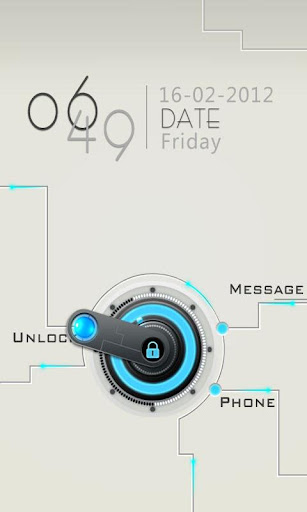
FREE GO Locker Circuitry Theme v1.0 apk

Something that is not available through-out the Internet for FREE, we are here to give it to you for FREE. The most amazing lock-screen for Android is here.

GO Locker Theme Circuitry, designed to GO Launcher EX, is available for free now!

GO Locker Theme Circuitry, design to GO Launcher EX, is available now!
Note: Make sure GO locker V1.11 has been installed.

Tips:
1. Make sure GO Launcher EX V2.58 or above and GO Locker v1.11 has been installed;
2. Click “MENU—->Preferences—->Theme Settings—->GO Locker---->"My locker” to choose the theme;

Iif you meet any bugs or want any improvement!
E-mail: golauncher@goforandroid.com


Click here to : DOWNLOAD


For Android Downloads & Tricks : Click here | For Hacking tricks : Click here | For How To Do Tutorials : Click here | For Gadget reviews : Click here | For Internet Tricks : Click here | For Windows tricks : Click here.

You can like us on Facebook or Follow us in Twitter to stay connected with us.

May 21, 2012

How to Root Samsung Galaxy Y S5360

UPDATE : Wanna know how to root any Android phone? Then click here -
How to Root Any Android Phone 2.1, 2.2 and 2.3


Is this article needs any crazy intro? If you are looking for the process of how to root your new Samsung Galaxy Y, well you’ve stumbled to the right place! You can root it so easy with this method!

First of all, credits to Aro Mukherji and also Mr. Gambit.

CAUTION : It may void the 1 year manufacturer warranty.


  • Download this file update.zip
  • Copy the ZIP file to the root of your SD-card
  • Turn off your phone
  • Switch ON your device in the recovery Mode (hold power, volume up, home button together)
  • Select update from SD Card option. (use the volume keys for selection)
  • You will see that a list of files will come up. Select the file which is named as update.zip
  • Wait for a few minutes
  • Yappiiee!! Your Galaxy Y S5360 is now rooted successfully!
  • Look for the Superuser app on your device or install an app that requires root access to get confirmed.

To learn how to root any Android Click here. For more Android tricks Click here.

Root Any Android Phone 2.1, 2.2 and 2.3


UPDATE : Do you have Samsung Galaxy Y, then learn how to root it simply -  
How to Root Samsung Galaxy Y s5360


Why you should root your Android phone?


Wait a minute, first let me tell you why you should root your Android. There are always two classes of technology users; those who take and use technology the way it is brought to them, no questions or complaints, while others who want to indulge deep into the very essence of what’s being offered, and want to empower themselves with everything to take the maximum out of that technology. Here I am giving you 10 good reason for rooting Android.

  • Unavailable Features
  • EXTRA APPLICATIONS
  • Multitouch
  • WIFI AND Bluetooth Tethering
  • Better Keyboard
  • APPS From other builds
  • APPS 2 Sd
  • Hardware/Software Interaction
  • Performance Update
  • Because you can! 


I am serious, I consider this a reason. You have a powerful, capable device that you have paid for. You should have the right to modify or change it in any way you like. The device is your property, and you would naturally want to see it working at its maximum potential. Hence the point of rooting.


Remember
  • Do not root your device within warranty period, or your manufacturer warranty may void.
Requirements and Reminders
  • Unlock Root works only on Windows computers. You will need a computer running Windows 7/Vista/XP.
  • Install the USB drivers for your device before you use Unlock Root. You can usually download the drivers from your device manufacturer’s website. Or, if you received a driver CD together with your device, install the drivers using the installer on the CD.

Instructions
  • Download the Unlock Root software. Get it straight from the developer’s website.
  • Enable USB Debugging mode on your device. You can do this by going to Settings > Applications > Development on your device.
  • Connect your device to your PC using a USB cable.
  • Run “UnlockRoot.exe”. Wait for your handset to be automatically detected.
  • Choose your device from the list of autodetected devices.
  • Click the Root button to start the rooting process.
  • Wait for it to complete the installation, after which you’ll be greeted with a message saying your device has been successfully rooted.
  • After the rooting process, simply reboot your device for the changes to take effect.
Congratulations! You have successfully rooted your device. You can check whether or not you have root access by locating the Superuser app on your device or installing an app that requires root access.

If you want tutorials on how to root your particular Android device then tell usin comments, we will provide you at the earliest.

For more Android tricks click here.

May 14, 2012

How to Run Android Apps in Computer


The success of Android operating system is gradually depend upon the apps they are running. Android Market has really very cool and handy Apps which are daily used by millions of people. As the popularity of Smartphone’s and tablets increases, so the uses and dependencies is on the apps available for them. Whether the App is a hot game, a handy price checker, or a useful contact manager, the constraints of Smartphone and tablet designs and interfaces have forced app developers to find creative ways to present and access data. But unfortunately, most apps created for Smartphone’s or tablets aren't available for use on a PC. But here is the solution; there is a one company called BlueStacks in California who releases the Alpha version of app player which is the software or what we say an emulator for the Android Apps. The BlueStacks app player essentially runs an instance of Android in a virtualized environment on the PC, so the apps act as though they're running on a mobile device. So follow the steps below to run the Android Apps in Pc.

Download BlueStacks and Install

Step1: To use the BlueStacks app player, you must first download it from the BlueStacks website.
Step2:  Installer is light weight around 3 MB and it downloads in snap. Just follow the instructions and it install’s in little moment.

Keep in mind that the BlueStacks app player is still in the early phases of development, so you can expect some minor performance issues and perhaps a bug or two.
When the installation is complete, you'll see a short video describing how the BlueStacks app player works and how you can access a few key features, Just skip it.


How It use?

To use BlueStacks and to transfer the android apps from your computer. You’ll have to register for a free BlueStacks account with either a working email address or a Facebook account. The main allure of the BlueStacks app player is its ability to send apps from your Android device to your PC via the company's Cloud Connect mobile app and servers.

 When you register an e-mail address or Facebook account with the BlueStacks app player, the service will link a personal identification number (PIN) to your email account. To transfer apps from your Android device, launch the Android Market on your Android tablet or Smartphone, and search for BlueStacks Cloud Connect. Download and install the Cloud Connect app on your phone or tablet; don't worry-- it's only 402KB. With that app in place, you can send any other app that's installed on your mobile device to the BlueStacks app player on your PC. Essentially, the Cloud Connect app uploads selected apps from your phone to BlueStacks' servers, where you’re PC can then access and download them to your PC.

To use BlueStacks Cloud Connect, simply launch the BlueStacks and select the Android apps on your device that you'd like to upload for transfer to your PC. Then click the Sync button at the top of the interface, and wait for the apps to upload (all of thae apps installed on the mobile device will be listed). The uploaded apps should be visible in the BlueStacks app player on your PC when you launch the 'Get More Apps' tool.

Once your apps are uploaded and the app player has notified you that they're available, select Get More Apps from your BlueStacks app player's PC client and click the Cloud Connect link. From there, a screen should pop up that lists all of the apps you uploaded from your mobile device. Click the Subscribe button underneath each app, and you should be able to run your favorite Android apps from the app player on your PC.
Here what I am running. Hope you like the post and enjoy the Android apps on your computer.

May 13, 2012

Samsung Galaxy Tab 8.9 Specification

Samsung corporation is one of the leading manufacturers of mobile phones and tablet PC’s Specially they are very much capable in android enabled devices. Samsung Galaxy Tab and mobile are the example of that. Samsung Galaxy tab is one of the popular tablets in market after iPad and Samsung tries to beat it with the series of Galaxy tab. In this concern here is Samsung Galaxy Tab 8.9 version is announced by Samsung with some fixed and extra features included within it like better design, good interface and featured web browsing.


Features of Samsung Galaxy Tab 8.9
  • Samsung Galaxy Tab offers the Multi touch screen coupled with 1200*800 pixel resolution which makes a similarity with iPad screen. The multi touch performance is awesome and it surely give you different experience.
  • Samsung Galaxy Tab has android honeycomb 2.3 pre-installed but with a some little tweak we can use the “Ice cream sandwitch” version of android. Use a touchwiz 4.0 apps and made it look like a ice cream sandwitch.
  • There is a feature called Samsung Hub which incorporates Music, Social and Reader inside it and let you to explore and find various contents on web regarding news songs etc.
  • Samsung Galaxy tab has Newly added motion control feature is also impressive and which make easy to enlarge images by panning and titling the device.
Specification of Samsung Galaxy tab 8.9
  • Processor: The Samsung Galaxy Tab 8.9 also has the same 1GHZ dual-core Nvidia Tegra processor found inside the Galaxy Tab 10.1 which ensures a similarly slick web browsing and page loading performance as in Galaxy 10.1.
  • HD support: Yes it is great while playing the HD videos.
  • Camera: 3 megapixel + LED flash on rear and 2 megapixel on front camera which enables you to use skype and messenger easily.
  • Battery: Official tested works 9 hour after charge.
  • Weight and size: 453 gm and 8.6 mm thick.
Pros and cons
  • Lightweight and Good design.
  • The Screen is Brilliant and ideal for tablets.
  • Better alternative of iPad in terms of browsing speed.
  • Touchwiz 4.o enables you to experience the ice cream sandwich version.
  •  No HDMI and usb ports.
  • Sound performance of Samsung Galaxy Tab is poor due to it is located at bottom of the device.
  • Price is high as per the features and specification provided.
Price and availability

Samsung Galaxy tab 8.9 is available in US market and it cost you around 500$ which is also considered as the drawback of this device that its price is literally too high.

April 17, 2012

Samsung Galaxy Y Pro Duos B5510 Review 2012


Samsung Galaxy Y Pro Technical Specifications:

General 2G Network: 850 / 900 / 1,800 / 1,900
3G Network: HSDPA  900 / 1,800 / 1,900
 Android 2.3 (Gingerbread)
Android Browser


Physical Specification
108.6g Weight
110.8x63.5x11.5 mm


Display
320 x 240 External Resolution LQVGA
2.6″ External Size

Messaging
SMS / EMS / MMS available
Predictive Text Input T9 : Yes
Google mail / IMAP4 / POP3 / SMTP
vCard / vCalendar available
Thru Samsung IM : Yahoo, Google talk, Windows live

Call functions
Speakerphone available
Caller ID available
Call Time : Yes
Multiparty : Yes
Dialed / Missed / Received Calls : Yes

Video Touchbar + QWERTY
Video Player : 3GPP / H.263 / H.264 / MPEG4
QCIF / QVGA (Recording)
Video Messaging : via MMS
Video Streaming : Yes
Video Telephony : Yes

Connectivity
Bluetooth v 3.0+ HS
2.0 High Speed USB
WAP 2.0 / HTTP
USB Mass Storage available
Android browser (Google)
v1.2
v1.2
802.11b/g/n
AGPS Supported
Samsung Kies 2.0

Design Touch + QWERTY Bar

Camera
3.15 megapixels
2x Digital Zoom
Normal Shot / Timer Shot / Nightmode / Smile Shot / Panorama
Photo Effects : Black & White / Negative / Sepia
Auto / Daylight / Cloudy / Incadescent / Flourescent

 Memory
Internal 160MB
Card slot Up to 32GB

Music & Sound Music Player : Yes
Poly Ringtone available
MP3 Ringtone available
OMA DRM v1.0 FL
DNSe

Personal Information  Calendar : Yes
Via Calendar
Clock : Yes
Worldtime : Yes
Alarm : Yes
Calculator available
Memo Book : Yes
Stop Watch : Yes
Countdown Timer : Yes


Battery
1,200mAh Battery Capacity
Stand-by up to 800h (2G)/ Up to 500h(3G)
Talk time Up to 17h(2G)/ Up to 6h 10min (3G)


Samsung Galaxy Y Pro Price in India :Rs. 8999


Samsung Galaxy Y Duos S6102 Phone Review 2012

Samsung Galaxy Y Duos S6102 Phone Review:

Phone Network 
  •  2G Network = GSM850/900/1800/1900-SIM 1 & SIM 2
  • 3G Network = HSDPA 900/2100 -GT-S6102  HSDPA 850/2100 -GT-S6102B 
  • Dual Sim = Yes
  • Screen Size = 3.14 inches TFT capacitive
  • Screen Resolution = 240 x 320 pixels
  • Camera = 3.15 MP,
  • Digital Zoom = Yes
  • Video Recording = Yes
  • Touch screen = Yes
  • Bluetooth Enabled = Yes
  • 3G Enabled = Yes
  • WLan Feature = Yes
  • Dimensions = 109.8 x 60 x 12 mm
  • weight = 109 g
  • Battery = Standard battery, Li-Ion 1300 mAh
  • Talk Time = Up to 9 h
  • Stand by Time = Up to 360 h
  • Games = Supported
  • Radio = Stereo FM radio with RDS
  • MP3 Ringtones = Supported
  • USB Charging = Supported
  • Smart Phone = Yes
  • Processor Type = 832 MHz
  • Operating System = Android OS, 2.3 Gingerbread
  • Internal Memory = 170MB user available, 512 MB ROM, 384 MB RAM
  • External Memory =  microSD, up to 32GB, 2 GB included*

Samsung Galaxy Y Duos S6102 Price in India: Rs 8,900


March 31, 2012

Hide Folders in Nokia or Java phones without software

Hide folders in your phone without any software. It's very easy you don't even need any software for that.
Follow These Steps To Hide A Folder In Your Mobile:
  1. Select a folder that you want to hide from others or create a new folder.
  2. Then you have to change the folder name with an extension of .jad. eg: LearnTricks.jad
  3. And then create another folder in the same directory with the same name but extension will be .jar. eg: LearnTricks.jar.
  4. The orignal LearnTricks folder which has been renamed with .jad gets hidden and only folder with.jar extension is visible which is empty.So,my data is protected/hidden from unwanted eyes.
To Unhide:
Just delete the folder of .jar extension or rename the folder of .jar extension and your orignal folder with all the files and with .jad will become visible.
That's it. njoyyy frnds.

February 29, 2012

Play high resolution videos on your Galaxy Y & other Androids having low RAM

Each time you want to transfer a video from your PC to your Android you have to convert it to mp4 or 3GP ?
Well that sucks!!
Well-paid Android phones have many video players that can play HD videos of any format (i.e. flv, avi, mkv) but phones like Samsung Galaxy Y or galaxy POP which have only 300mb RAM can not play HD videos well with those media players.


But here is another great  media player which can play HD movies of any format in your Android. It named MX Video Player. You can Download it for free from the market.


After installing this you have to install MX Video Player Codec depending on your phone's processor. Its also available for free in the Android market.

Why you should use it?


a) MULTI-CORE DECODING - MX Video Player is the first Android video player that performs multi-core decoding. According to the test results on dual-core devices, it shows up to 70% performance improvement than single-core devices.

b) CPU OPTIMIZATION - Provides highly optimized Codecs and Rendering Engines for the processors including ARM® NEON™ and NVIDIA® Tegra™ 2.

c) PINCH ZOOM - Easily zoom in and out by pinching and swiping across screen.

d) SUBTITLE SCROLL - Scroll on subtitle text and playback position will be adjusted to match previous or next subtitle timing.

e) BETTER SUBTITLE READABILITY - Increased subtitle readability with thicker border and shadow around text.

f) ANDROID 4.0 - Fully supports Android 4.0 Ice Cream Sandwich.

- SubRip(.srt)
- Sub Station Alpha(.ssa/.ass)
- MicroDVD(.sub/.txt)
- SubViewer2.0(.sub)
- SAMI(.smi/.sami)
- MPL2(.mpl/.txt)
- PowerDivX(.psb/.txt)
- TMPlayer(.txt)
- Matroska (.mkv) Subtitle Track. (text, ass/ssa only)


About "modify battery statistics" permission: MX Video Player displays current battery state while playing video. To do this permission to read battery state is required. However Android does not distinguish between reading battery state permission and writing battery permission. This is why, despite battery state is only being read, permission to write battery state is required.

About "System Tools - display system-level alerts" permission: This permissions is required to block HOME key when input blocking is activated on video playback screen.

February 28, 2012

Connect Samsung Galaxy Phones as Modem and Surf Internet from PC

Check-out more services from us -  For Hacking tricks : Click here | For Android Tricks : Click here | For How To Do Tutorials : Click here | For Gadget reviews : Click here | For Internet Tricks : Click here | For Windows tricks : Click here


I know always you have to face difficulties while connecting your Samsung phone to PC and wanna connect to internet by using it as a modem. After I bought my first Samsung phone (it's Galaxy Y) I have to search on Google about this.
Only installing Kies can't help you as Kies don't have any option to connect to Internet via your Samsung mobile, like Nokia PC Suite. I never use a Samsung phone before so can't tell you about other models except the Galaxy Series.

So here I am giving you a full tutorial on how to use Samsung Galaxy series android phones as modem and running internet through PC. 

Connect the mobile to PC via USB cable and do not select the file transfer mode. (If you already have Kies installed in your PC make sure that Auto Connect is OFF)


Go to menu > settings > wireless and network > mobile network.
Check "Use packet data"


Now press come back to Wireless and network & click on "Tethering and Portable Hotspot"


check "USB Tethering"


Install Kies, you can download it from here : Download Kies

Now in PC, go to Control Panel > Network and Internet connections > Network connections  


Here you will see Samsung modem.


Now you are connected to internet via mobile and you can see the connected icon. If you have something to add please say it in comments!!

Check-out more services from us -  For Hacking tricks : Click here | For Android Tricks : Click here | For How To Do Tutorials : Click here | For Gadget reviews : Click here | For Internet Tricks : Click here | For Windows tricks : Click here. You can like us on Facebook or Follow us in Twitter to stay connected with us.
 

February 14, 2012

Galaxy Tab 2 running Android 4.0 ICS

Samsung officially launched their first Android 4.0 ICS tablet Galaxy Tab 2, the successor to the original Galaxy Tab. The classic version, Samsung Galaxy Tab code named P1000 runs on Android Froyo that is used for Android smartphones. Now, the new Samsung Galaxy Tab 2 which looks similar to the original device runs on latest version of Android OS 4.0 Ice Cream Sandwich commonly developed for smartphones and tablets. Samsung confirmed the device release in the month of March 2012, starting from UK market. Progressively, it will reach Scandinavian countries like Sweden, Finland, Norway and Germany.
samsung-galaxy-tab-2 
Samsung Galaxy Tab 2 comes with a 7-inch PLS TFT LCD touchscreen display with WSVGA (1024 x 600) resolution. The device comes packed with 1Ghz dual-core processor, 1GB RAM and 8/16/32 GB of internal memory. The Galaxy Tab 2 sports a 3-megapixel fixed focus camera on the rear-side and a VGA camera on the front panel. The ergonomically designed equipment comes in a 10.5mm thickness and carries a 4000 mAh battery. Galaxy Tab 2 running Android 4.0 comes with an improved interface that allows the user to experience swipe-controlled apps and unlock the phone using Face Unlock. On top of all this slate comes pre-loaded with Samsung TouchWiz UI with Live panel. Also, to leverage the socio-entertainment needs the device comes with Samsung Apps support, Samsung Hub, Kies Air, ChatOn messaging service and AllShare Play cloud service etc. The new Galaxy tab 2 has something new called S Suggest, that suggest apps best suited upon the device user.
samsung-galaxy-tab-2-1 
Samsung Galaxy Tab 2 supports expandable memory and connectivity options like Bluetooth, Wi-Fi and 3G. The tablet sells in both Wi-Fi only and Wi-Fi+3G versions starting from March 2012. The tentative price of unknown version in U.K is $350. Here are some price details for various markets.

Sweden:
Wi-Fi: 2,995SEK (450USD)
3G: 3,695 SEK (556USD)

Finland:
Wi-Fi: 349EUR (463USD)
3G: 429EUR (568USD)

Norway:
Wi-Fi: 2,400NOK (420USD)
3G: 2,990NOK (523USD)

Denmark:
Wi-Fi: 2,350DKK (419USD)
3G: 3,995DKK (512USD)

Samsung Galaxy Mini 2 Image Leaked

The new Samsung Galaxy Mini 2 S6500 codenamed Jena seems to be the low-end sibling for Samsung Galaxy Mini S5570. Surprisingly, this small device appeared in a leaked image with some key highlights sent by a tipster to GSMArena. Also, it is expected that the device will be showcased at Barcelona event Mobile World Congress 2012 later this month.
samsung-galaxy-mini-2

Samsung Galaxy Mini 2 comes with a 3.3 inch HVGA TFT touchscreen display with 480 x 320 px resolution. Under the hood, the device carries an 800 Mhz processor with 3GB of internal storage. Jena runs on Android OS v2.3 Gingerbread and sports a 3.0 Megapixel camera on the rear-side. Like the classic version, there is no front facing camera attached to the device. While looking at the connectivity options, Samsung Galaxy Mini 2 features Bluetooth, Wi-Fi and 3G HSDPA 7.2 Mbps. On the whole the device has shown some improvements on the original version. Samsung Galaxy Mini 2 looks exactly like the Mini Samsung Galaxy S with its rounded corner edges, home button and a hump at the lower back. As the event date is getting closer, more of the such leaks and device news are expected. We shall try to keep our readers updated with such happenings.

February 8, 2012

No Samsung Galaxy S III at March 22nd event in France

When will we get to see the elusive, but highly anticipated Samsung Galaxy S III? The sequel to the wildly successful Samsung Galaxy S II is not making the trip to Barcelona for MWC 2012, as confirmed by the Korean manufacturer. Apparently, the 7 month gestation period between the Samsung Galaxy S II's introduction at last year's MWC and its initial U.S. launch on Sprint was just too much for Samsung.


After the word went out that the Samsung Galaxy S III would be a no-show at MWC, a invitation from Samsung to the media for a March 22nd event in France had everyone hopped up once again, speculating that this would be the date of the Samsung Galaxy S III's introduction. But once again, Samsung has put the kibosh on that idea. The manufacturer told The Next Web that the event in France is merely a way to showcase Samsung's existing portfolio and demonstrate the devices displayed at MWC for those who could not make it to Barcelona.

The Samsung Galaxy S III is still expected to make its debut in the first half of this year. While no one knows for sure what the specs are on the phone, thanks to the use of components that are 10% to 20% thinner than "conventional parts," including the printed circuit board, the latest leak calls for a thinner form factor than the Galaxy S II. This could result in a device perhaps as thin as 7mm (1.5mm thinner than the Samsung Galaxy S II), with a Super AMOLED Plus display and a quad-core processor under the hood. An 8MP camera should be on back, capturing true HD video, and the handset should have an HDMI output with LTE connectivity. And while the latter might give you the idea that the Samsung Galaxy S III will be initially launched in the States, the Samsung GALAXY Nexus was released first overseas with HSPA+ connectivity, followed by the launch of the LTE variant in the States. In the meantime, you may now erase that circle you drew around March 22nd on your calendar.

Click to Download our Android App