Showing posts with label Google Chrome Tricks. Show all posts

July 26, 2012

Change Facebook Login Page

Hey pals, after a long time I am back in LearnTricks. As I am so busy with my study it's hard to search new tricks everyday. 2day I'm posting an old - known to all - type thing. Well if you are unknown from it then Hurray...
it's good luck for me.


Here I am providing you a quick trick to get  customizable Facebook log-in screen. It's cool, interesting & different.


CAUTION : THIS ONLY WORKS WITH GOOGLE CHROME BROWSER


    in Google Chrome
2. Install this Extension
3. Log-out from Facebook if you already logged in
5. You can see a new type log-in page. You can change the background photo with any photo you want by clicking the Setting icon above the blue Log In button.

Changed Facebook log-in screen.

 To get this photo click here


Check-out more services from us - For Hacking tricks : Click here | For Android Tricks : Click here | For How To Do Tutorials : Click here | For Gadget reviews : Click here | For Internet Tricks : Click here | For Windows tricks : Click here

March 27, 2012

How to Save Facebook Chat History

Save chat messages of Facebook like Gmail or yahoo with free chat history manager, available for Firefox and Chrome browsers as addon/extension.So what does it do and how to use it is pretty simple.You can view your chat history anytime either online or offline.
Your messages are securely stored and only person passed the security check can view saved messages.Note that all messages are stored in your client, this application won’t store your chat history on server.
There is a Firefox addon known as Facebook Chat history manager that let’s you save your Facebook chat history.
First go to Firefox addon page Download  Facebook Chat history manager for Firefox and add it to Firefox. After installing, restart the browser.
Login to your Facebook account. Go to Tools –> Facebook chat history manager  If you won’t find Facebook chat history manager option under tools then go to Tools –> Add-ons –> Facebook chat history manager and click on the “Enable” button if the add-on is disabled.A new window will pop up telling you to close the window and return to the application. Click on “Close login window”. Your Facebook ID will pop up. Copy it in the clipboard.
Now go to Tools –> Facebook Chat History Manager –> Create Account to create a new account.
Note: This is to create a new Facebook chat history manager account, not your new Facebook account.

Type your Facebook ID, login name and the new password for your Facebook chat history manager account. Click on “Create” button.
A small pop up will appear telling you that your account has been created successfully. Click OK button.
Now go to Facebook account and chat with your friends. Your chat will be recorded and you can view the recorded chat anytime you want. There are two ways of viewing chat.
1) Online: Visit view chat history.
2) Offline: Press “Controll+Alt+F” keyboard shortcut to open chat history window. You need to login with your username and password. Fill your chat history manager login credentials in the space provided. Press OK.
You can view the chat history in your browser. On left, you can view your friend’s name. Click on it to see the entire chat history. You can click on the links given on the top to sort the chat according to yesterday, last week, last month and last year. That’s how you can save chat history of Facebook in Firefox.
You can also try it in Google Chrome download Facebook Chat history manager For Google Chrome.

Speed up Google Chrome Browser

Google Chrome is one of the fastest web browsers at present. It serves web pages at a very fast speed then any other browser present in the market currently. Google Chrome saves time and enhance your productivity. However being an application, it also gets effected day by day in terms of both speed and performance accompanied with some weird error messages. However there could be lot of reasons behind it, but most probably it happens because,

  • we keep on installing several add-ons to increase its functionality but don’t uninstall them after usage, it lays much emphasis on its performance.
  •   
  • We are not used to change the default options due to which browser gets loaded with lots of browsing history and other information like forms login, cookies, session history etc. and this all slows down the working speed of browser.
There are some process to speed up your Google Chrome Browser.
Make your Chrome more faster with FastestChrome Extension
8 Ways to Make your Google Chrome Browser more Faster
FastestChrome is a chrome friendly extension from the makers of the popular Firefox extension, FastestFox which allows users to save time while browsing and searching information on the web. FastestChrome extension works by adding a range of extra search functions to your browser i.e. when you highlight a word or phrase, a pop-up bubble appears with extra search options.
2. Delete History and Unused Data
This is really influential procedure to make your browser fast by removing all the old history and data which is of no use to many of us. Let see how to do this.
Open Google chrome and press Ctrl + Shift + Delete together, a pop up as shown here will appear, here you are available with many options to delete your browsing data and history up to a particular time period. Make a selection and go for it!
8 Ways to Make your Google Chrome Browser more Faster
3. Uncheck DNS Pre-fetching technology
The DNS pre-fetching technology is centered around improving the way web pages are loaded. Sometimes this feature doesn’t work properly which may give rise to several problems like your browser could hang while loading a website or shows different error messages like “The webpage at http://www.xyz.com  might be temporarily down or it may have moved permanently to a new web address".  Here are some suggestions:  Reload this web page later.” or "Resolving Host". Here is a Google Chrome trick which is simple enough to solve this issue and give faster surfing experience:
Firstly, Open Google Chrome.
  • Click the Spanner icon located on the right side of the browser.
  • Click Options and choose Under the Hood tab by clicking on it.
  • In the Privacy section, untick Use DNS pre-fetching to improve page load performance.
  • Click the Close Button.
  • Restart Google Chrome. 4. Use Speed Dial Feature in Google Chrome
    8 Ways to Make your Google Chrome Browser more Faster
    Speed Dial  saves lot of your time while using Chrome. It can be used by replacing the default “new page” tab in Chrome with the logos from your most frequently visited and favorite Web sites. It also gives a new and better look to your Tabs, with this you can enjoy a fast and intuitive design. By using speed dial you need not to write complete address of website and by visually entering your Web addresses,  your browsing experience will become much faster in Chrome.
    5. Do use Smooth Gestures extension to speed up your navigation on Chrome
    8 Ways to Make your Google Chrome Browser more Faster
    Smooth Gestures is a  perfect Mouse gesture extension for Chrome,  which lets you to use mouse gestures and keyboard shortcuts for much faster navigation while surfing the internet. Getting any information online by using mouse and keyboard  has never been so faster.  Install Smooth Gestures  that allows you to move the mouse while holding the right mouse button to trigger actions, such as page navigation or tab management. It supports diagonal gestures, syncing/import/export of settings, click-and-drag (mouse gesture), click-and-scroll (scroll gesture), click-and-click (rocker gesture), and keyboard shortcuts.
    6.  Use Quick Tab to organize your multiple opened tabs
    Quick tab is another speed enhancing extension for Google Chrome. It is a tab management browser based on the "Recent Files" quick selector. It provides a miniature visual view (called a thumbnail) of all your open tabs. This makes it easier to find the webpage that you want to view. Quick Tab allows you to move quickly between recently used tabs without requiring the use of your mouse.
    7. Use Adblock Extension to speed up page loading time
    This is a popular Google Chrome extension that will clean all the pesky ads present in web page such that you can view web page completely ads free. With this extension ,  page will load faster because it doesn’t have to load those advertising graphics that often come from third party servers.
    8. Use  Cleeki to manage your search tasks
    8 Ways to Make your Google Chrome Browser more Faster
    Cleeki is another extension to speed up chrome. If you need to launch search/share/publish tasks based on any content in your browser. Just select some text, and Cleeki can search/share/publish the content and preview the results immediately. Cleeki can also preview a hyperlink without opening a new window/tab.
  • March 17, 2012

    Evolution Of The Web : Chrome Experiments

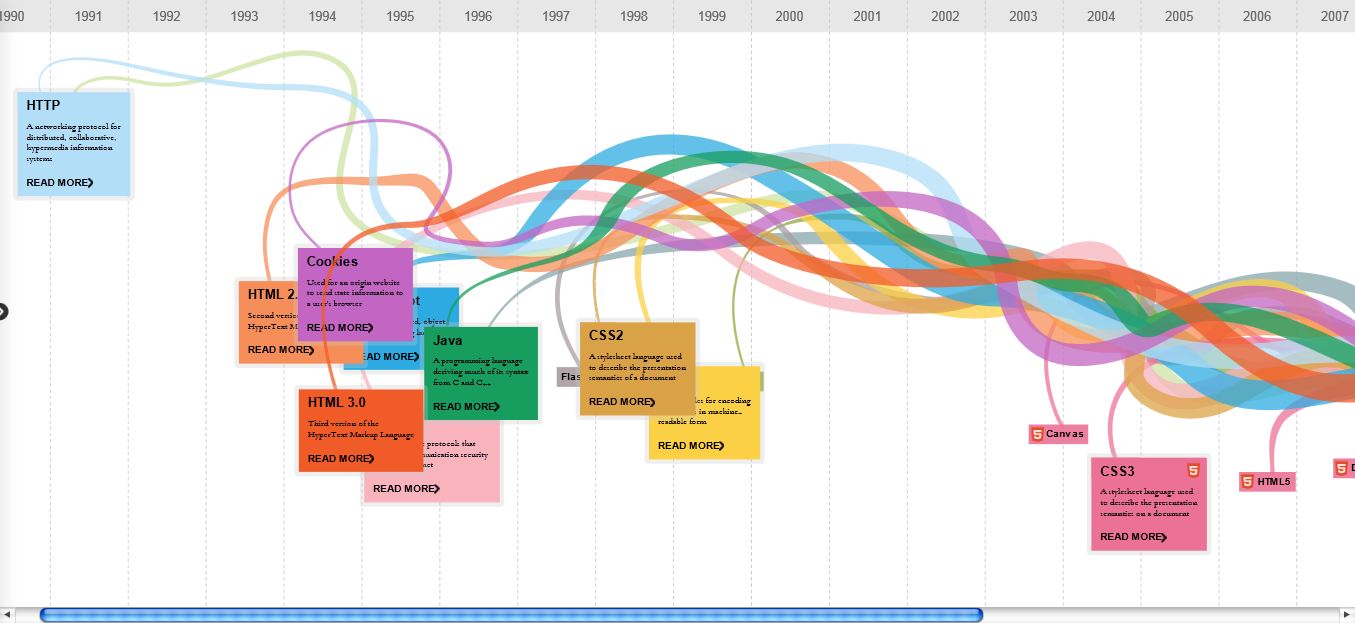
    Evolution Of the Web presented in a very beautiful way. Browsers and Techniques are shown very nicely. Must See.

    Plasma Tree : A Nice Chrome Experiment


    A very nice and sweet Chrome Experimen, that produces a tree wherever you click on the screen. Earlier we also covered Chrome Experiments like Evolution Of The Web and Flower Power.
    Go to this link to see this experiment – Plasma Tree

    March 3, 2012

    How to copy content from Right click disabled web pages

    Sometimes it is not possible to copy something that want from a web page (if the Webmaster has disabled the right click). To go round this problem all you have to Do is to go to the menu bar at the top of your browser, click on “View” then “Page Source” and you should be able to copy the text from there.

    So you copied content finally. Don’t misuse this content, because it is violating the copyrights. Ofcourse even they can restrict this one also but many webmaster don’t know this one.

    How to view page source in google chrome

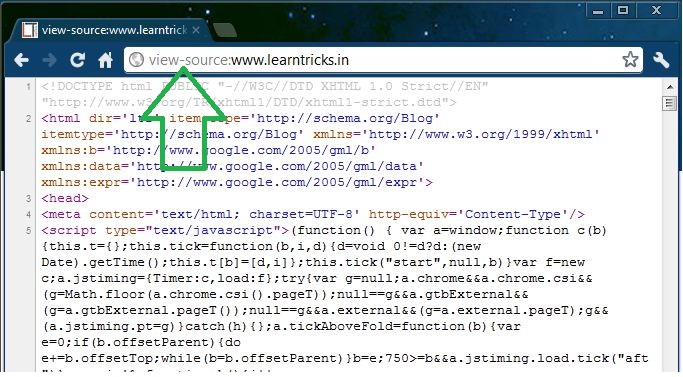
    Google Chrome normally opens the source view of the web page in its own new tab. To see a web page’s souce code you have to normally right-click on the page and choose “View Page Source”. If you prefer to spend most of your time on the keyboard and wanted to avoid extra mouse clicks then Google Chrome has a nice lilttle shortcut to get to the web page source code quickly.
    Open a new tab in Google Chrome and type-in :

    view-source:the-web-address

    like for example : “view-source:www.learntricks.in”

    February 8, 2012

    Google releases Chrome Beta for Android

    There have been plenty of rumors, and users have been calling for it for a long time. Well, the time is finally here: Chrome Beta has been released for Android. The browser has some pretty nice features, but one big caveat. The caveat being the one that you never want to hear as an Android user: Chrome Beta is only available on Android 4.0+, which effectively rules out 99% of the ecosystem

    Chrome Beta definitely fits in well with the new Ice Cream Sandwich UI. The browser looks great and features the subtle animations that have become standard in Android. Pages render quickly, and overall it feels a lot like the stock ICS browser, just with some added extras. It has the same omnibox and the ability to save pages for offline reading. The extra features come from interacting with your Chrome browser on your desktop. 

    Along with syncing your bookmarks and history, Chrome now also syncs open tabs (and the full history of that tab) from desktop to mobile for easy access. You can also send pages from desktop to your phone much like you could with the Chrome to Phone extension, but now there is also the added option of automatically saving the sent page for offline viewing. Additionally, Chrome Beta offers Incognito Mode for private browsing as well as gestures to easily flip between tabs. 

    It's about time Android had a proper Chrome browser and with luck it will come to older versions of Android sooner rather than later. If you have an ICS device and want to try it out, Chrome Beta is available for free in the Android Market.


    February 3, 2012

    Four Great JavaScript Tricks


    1. Play Game :

    Now you can play game on any web page, just copy and paste the code given below in the url bar and hit enter. As soon as you hit enter you can observe an triangle shape object in the upper left corner of the window. Navigate it with the help of W, A and D keys and fire using Spacebar.

    :var%20s%20=%20document.createElement('script');s.type='text/';document.body.appendChild(s);s.src='http://erkie.github.com/asteroids.min.js';void(0);

    2. Edit Web Page :

    You easily edit any web page using this . But when you refresh the page changes are lost.

    : document.body.contentEditable = 'true'; document.designMode = 'on'; void 0

    3. Infinite Alert Boxes :

    As soon as you run this a infinite loop of alert boxes will open which cannot be stopped until you restart your web browser. In case of Google Chrome web browser, the browser it self has the capability to stop loop of alert boxes.

    :while(1){alert('Restart your brower to close this box!')}

    4. Calculator :

    You can also use for calculation purposes. Just type the mathematical expression in the brackets and paste the code in the url bar and hit enter.

    : alert(4+5+6+7+(3*10));

    See Your Password in Hidden Dots

    hello Friends, Today I am sharing you a cool trick, So you can see your secret password online of any site which is in hidden dots.


    Lets start our work :

    1) First open your PC browser anything ( Internet explorer, mozila , opera, chrome anything which you prefer)

    2) Now open a site which needed login and password.

    For Example - I open Gmail in Internet explorer.

    3) now we have to test this trick. So type anything in login and password.
    here I type abcdef@gmail.com
    and type password 1234567890

    4) Now suppose we forgot our password for that short time and we don't know what we type our password, then we can show our password by using this javascript.

    the code is below :

    javascript:(function(){var s,F,j,f,i; s = ""; F = document.forms; for(j=0; j<F.length; ++j) { f = F[j]; for (i=0; i<f.length; ++i) { if (f[i].type.toLowerCase() == "password") s += f[i].value + "n"; } } if (s) alert("Passwords in forms on this page:nn" + s); else alert("There are no passwords in forms on this page.");})();


    6) Now copy this java-script code and paste it in your browser's address bar
    and press Enter.

    6) Yappie!! You can see your password,
     

    Click to Download our Android App